The Maono G3 Review - Plastic Toy or Valuable Tool for Professional Streaming and Gaming?
-
 by
David Lörch
by
David Lörch
- last edited: 07.10.2026
Our Rating:
★★★☆☆
The audio mixer has versatile features, but some of them are not fully thought through (no motorized faders, poor microphone preamp).
★★★★☆
The Maono G3 offers a wide range of connection options, and they all work without problems. However, the number of inputs and outputs can quickly seem confusing and overwhelming, especially if you only work on one PC.
★★★☆☆
Everything is made of plastic and feels a bit like a toy, but nothing wobbles and everything moves smoothly.
-
$89.99
As of Oct 30, 2026, 10:31 pm GMT+0000
Buy at Amazon*
- Use our affiliate links and support our work.
Our website is free of advertising banners and we state transparently when we have been sent a product. By purchasing from our affiliate partners you do not pay more and support us. Thank you!
Maono G3: First Impression and What's in the Box
How convenient that more and more manufacturers are offering so-called “all-in-one audio hubs.” The Chinese manufacturer Maono is now launching its first device aimed specifically at people with a 2-PC setup (dual-PC streaming), meaning one PC for gaming and one for streaming. The device sits in the lower price segment and is therefore particularly suited to beginners.
The mixer has a practical, handy format. Included accessories are two USB-C cables with an attached USB-A adapter (very commendable!) and a very short 3.5mm TRS cable. A concise manual and a diagram of a typical connection scenario are also included. However, the manual only covers the controls and functions of the device itself, not the software. A warning that the product only works properly with the matching software is printed on the box and in the manual.
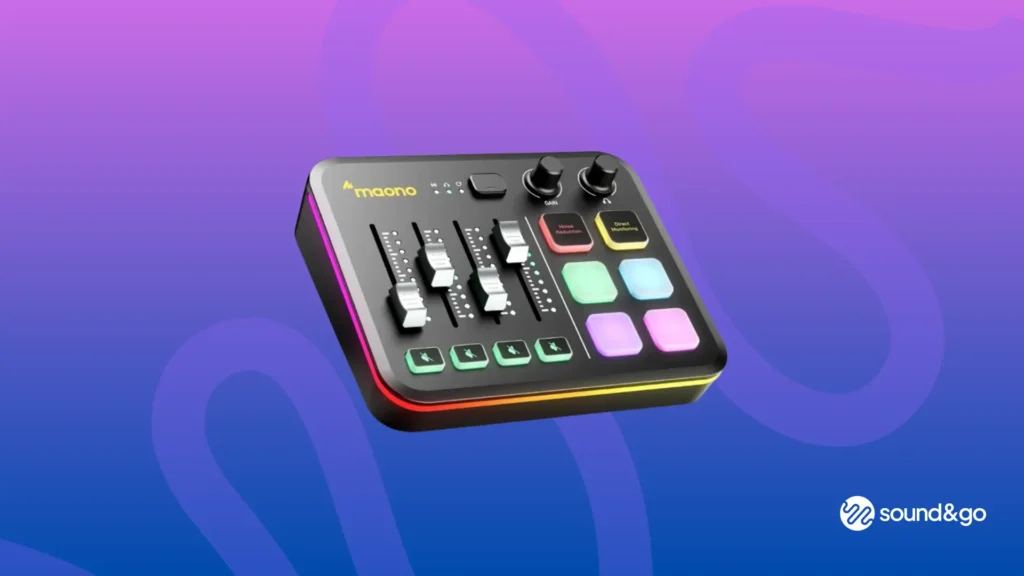
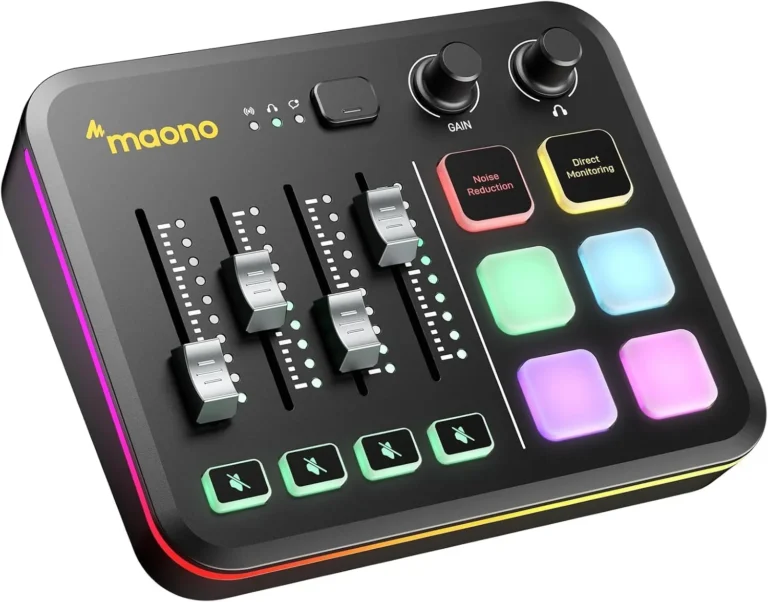
The device is made entirely of plastic, and between that and its size, the knobs, faders and buttons feel a bit like a toy. Everything moves and turns well and without resistance, though. When you connect the device via USB through the first port (which also supplies the power), you’re greeted by typical gamer-style RGB lighting on the knobs and the frame.
On the top there are four faders, each with a 10-LED level meter and a mute button below it. Next to them are four buttons for sound effects, one to activate noise reduction and one for direct monitoring of the microphone input. At the top there is also a knob for the microphone gain and a shared one for headphone and speaker volume. Beside those is a button with three indicator LEDs that lets you switch through the submixes for stream, chat and headphones.
The back has an XLR input with switchable phantom power and a TRRS 3.5mm headset connection, which cannot be used at the same time. When a headset is connected, the XLR input is disabled. For monitoring, there is one output for headphones and one for active speakers (both also 3.5mm jacks). Finally, there are the two USB-C ports, labeled PC-1 and PC-2.
Connected to a Windows PC, the mixer installs automatically and shows up with one input (G3 Microphone), one output (G3 Speaker) and an additional digital audio interface (G3 PC-2 as input and output). That won’t get you far, so you need the matching software.
The Real Centerpiece - Maono Arena
You can download the Arena software from Maono’s website. During installation, the file is first blocked by Windows Defender. So the manufacturer didn’t bother to get proper certification, which unfortunately doesn’t make a very professional impression. The software installation also adds a “virtual audio driver.” It makes 6 new virtual outputs and 2 new inputs show up in the system. When you open the software, these virtual outputs appear as individual channels, aptly named: Browser, Game, Music, Chat, System and Virtual. In addition, there are the “real” outputs of the microphone and the second USB port. If you’ve connected another microphone or headset via USB, it shows up too. This works best with Maono’s own microphones, which are detected and integrated automatically.

And now the mixing can begin! Of course, this is the most fun with the physical faders on the device itself, which are assigned to the first four channels. This is where a first problem appears: 4 faders for at least 8 channels. Unfortunately, these are not motorized faders, and you can’t shift to another channel layer either, as you know it from digital mixers. Hands-on quick access therefore stays limited to the first four channels.
After connecting headphones, it’s best to start mixing with the headphone output. If you switch through the 3 submixes Stream, Chat and Headphone, either at the left edge of the software or with the button on the hardware, the level meters of the faders adjust accordingly. Since they aren’t motorized faders, though, the faders of course stay where they are, and you first have to “pick up” the level again in order to adjust it. A sudden jump in volume seems to be avoided during this “re-link” process. Still, it’s not an ideal solution. Simple knobs like on the Roland Bridge Cast X or the Elgato Stream Deck might have been more practical – or motorized faders right away like on the TC Helicon Go XLR (which is in a different price class, though).
You can assign any piece of software that is currently playing audio to each fader. Sometimes, though, you also have to select the right output in the software itself (in Discord or some games, for example).
The software is clearly laid out, but the many options and routing possibilities can quickly become overwhelming (What was the difference again between “Mix Monitor” and “Monitor Device”?). Channels can be moved but not renamed. Only English or Chinese is available as a language, and the software only leads you to an English user guide, where somewhat cryptic wording like
“Which monitor output mode is selected by the monitor, the monitor device will listen to the sound of which monitor output mode, the virtual channels of the three mixing modes are independent of each other, you can adjust the volume of the same channel of each of the three modes.”
isn’t necessarily helpful either. Once you’ve understood the basics, though, you can actually quickly put together a usable headphone mix from various sources.
The four pads come with sound effects preloaded by default (Applause, Awkward, Booing and Cheering), but you can also upload your own through Arena and even choose the color and the playback mode (“1-Shoot,” “Loop On” or “Continue”).
You can also change the type of noise reduction. There is a DSP noise reduction (a two-stage noise gate) and an AI noise reduction (you wonder where on this small device the AI chip was squeezed in). It can then be switched on and off from the hardware and reduces background noise, fan noise and keyboard clatter on the microphone channel.
Typical Use Case
If you use a 2-PC setup, the streaming PC is usually connected to the first USB port, and the software runs on it as well. The gaming PC then connects to the second USB port, which can also be used to connect a smartphone, for example. For the stream, you can then create a mix that contains only game sounds, microphone and possibly some music, while you yourself also want to hear the browser, system sounds and a voice chat. You can then select the third submix as the input signal in Discord and activate only the microphone there for your fellow players. You can either use the faders or the “Fast Mute Router,” where you can quickly switch a series of signals on or off. Through the device’s headphone output, you can listen to all the submixes and adjust them.
That would get you equipped for streaming, but one crucial piece is still missing: the video signal. So you still need a capture card in the streaming PC and of course have to pay attention to keeping audio and video in sync (this is where latency comes into play). The competition from Roland and Yamaha offers mixers with a capture card already built in, which really do work as an all-in-one solution.
Conclusion: Is the Maono G3 Worth It?
The Maono G3 presents itself with a multitude of features and software with extremely flexible routing options. At €174.14 for the “Ultimate Streaming Kit,” including microphone, boom arm and headphones, you get an unbeatable offer for a beginner setup, but the capture card is missing to make it truly fully equipped.
That raises the question of the target audience, because anyone who can afford two PCs for streaming might prefer to go straight for higher-quality solutions like the Roland Bridge Cast X or the Elgato products. And anyone who streams with one PC gets software with the G3 that is loaded with a few too many confusing options and might already be well served by the G1 from the same manufacturer.
The lack of motorized faders and the low preamp gain of 57 dB, which can become a problem for some mics (watch out, Shure SM7B!), are further factors that rule out the G3 for a truly professional setup.
Want more gaming equipment? Check out our Gaming Headset Comparison or the Gaming Microphone Comparison!
-
$89.99
As of Oct 30, 2026, 10:31 pm GMT+0000
Buy at Amazon*
This might also interest you:
The Best Gaming Headsets Compared
Links marked with * are affiliate links. There are no additional costs for you, some of these links are with an automatic discount for you. We mark these links for transparency and would never recommend bad products. Find out more here: Our partners.